Creator workflow
Background music for YouTube videos: three-zone workflow
A music bed for videos is a production choice. Plan intro, body, and outro zones so your video background track sits under narration, matches edits, and cleanly ends.

Tarun YadavPublished September 30, 2026 · 6 min read · Search intent: informational
The short answer
Start music planning before you edit your video. Build your background music in three zones: intro, body, and outro. Match section timing and tempo to your video cuts. Keep narration clear by ducking music volume under speech. Always check music rights before upload. A well-planned music bed for videos can save time in post and avoid copyright flags.
Background music for YouTube videos is never an afterthought. It shapes how viewers experience your story and dialogue. Great YouTube background music sits below the voice, never above it. Each section of your video-intro, main content, and outro-needs a different approach. Treat your music bed for videos as a production layer, not a last-minute patch. Start planning before you record or edit. This saves you hours and prevents awkward cuts.
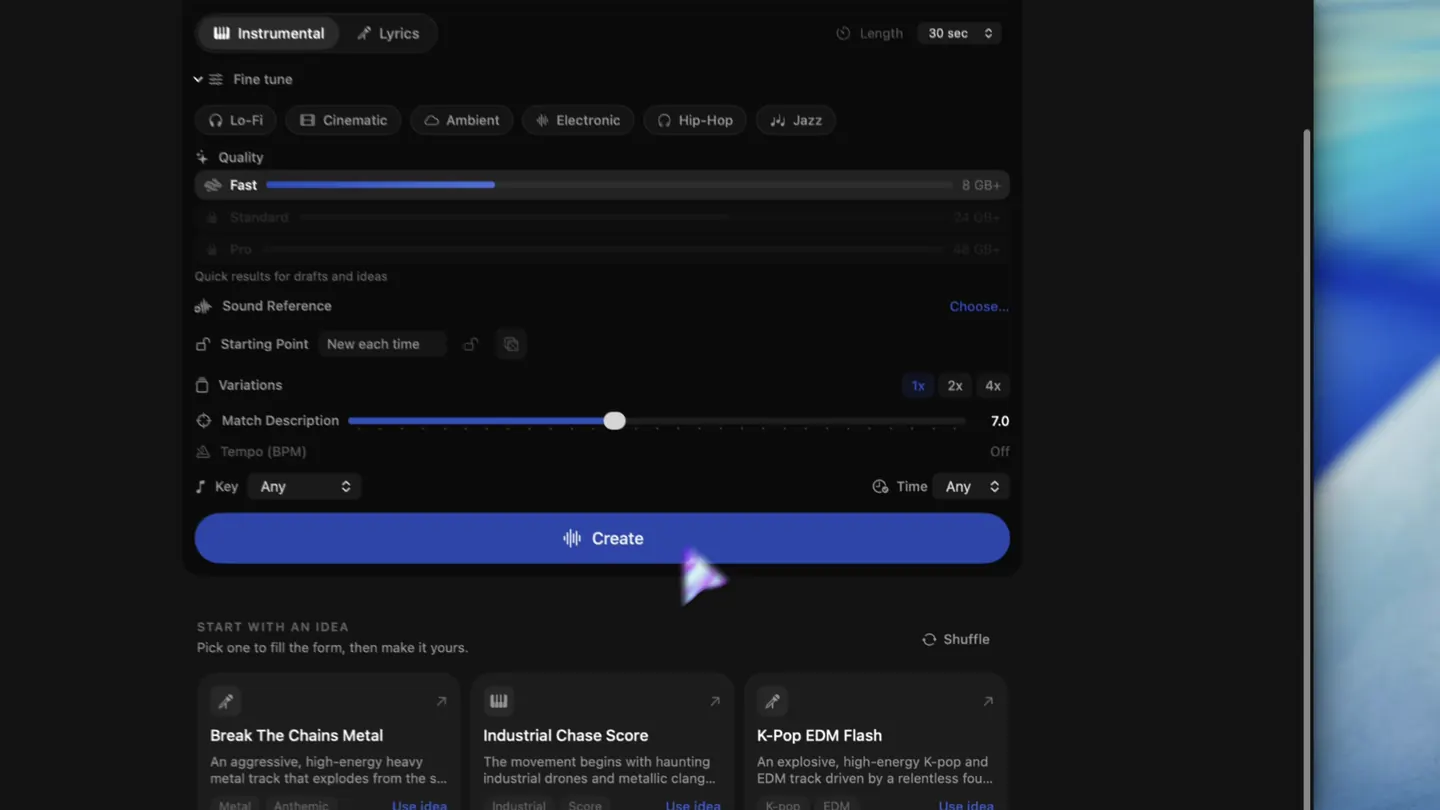
Planning a video background track before the edit is a practical habit. Good background music follows the video's structure: it sets the tone, supports the flow, and wraps up with intention. The three-zone method-intro, body, outro-helps you design music that fits your story. It also lets you manage loudness and timing from the start. If you use AI tools like LoopMaker, sketch your music zones to match your rough cut.
Design a background music bed for YouTube videos
Think of your video in three musical zones. Each zone has a purpose. The intro grabs attention and sets up your theme. The body stays out of the way of dialogue and supports pacing. The outro signals closure and should end on a beat, not a fade. Plan musical transitions at the same points as your video sections. This avoids abrupt music cuts and awkward volume drops in post.
A three-zone approach makes it easier to control the energy and feel of your background music. Use a short, recognizable motif in the intro. Shift to a steady, low-key groove for the body, keeping the track simple under narration. For the outro, resolve your harmony and bring the music to a natural end. This structure also helps if you need to loop sections or extend the body for longer edits.
- Intro: short motif
- Body: steady, simple bed
- Outro: resolved ending
Match the edit: tempo and section length
Your background music must follow the edit. Start by mapping music section lengths to your video's structure. If your intro is 10 seconds, your music intro should match. The body should cover the main content, which is often one to three minutes. The outro should line up with the final shot. Matching tempo to edit pace gives you clean transitions and helps you avoid awkward overlaps or sudden stops.
Use beats and bars to shape section lengths. If you edit dialogue in 8-second chunks, set your music phrases to 8 or 16 bars at your chosen tempo. This lets you align music cues with video cuts. If you need to loop a body section, check that the join is smooth and the groove is stable. When exporting from LoopMaker, use the tempo map to match your video timeline precisely.
- Map music to video section
- Use beats for clean cuts
- Check loops for seams
Keep narration intelligible
Narration comes first. Your music bed should never compete with the voice. Duck the background music 6-12 dB under the dialogue track. Use EQ to trim frequencies that clash with speech, especially in the 1-4 kHz range. Avoid busy arrangements or sudden changes that distract from words. If your script has pauses, let the music gently swell in gaps, but always bring it back down under speaking.
Monitor your mix with headphones and speakers. Test with real dialogue, such as an actual voice recording or your script read aloud. If you cannot understand every word, lower the music or simplify the arrangement. AI tools can help automate ducking, but manual tweaks are often best for clarity. Keep a reference video handy to compare. Intelligibility is the key to a usable video background track, especially on mobile devices.
- Duck music under voice
- EQ out clashing mids
- Avoid busy parts under speech
The rights check before every upload
Before uploading any video, confirm you have the right to use the music. YouTube background music claims can come from multiple sources and rules change often. Even tracks labeled as free may be subject to claims if metadata matches a commercial release. Check your music license, usage terms, and any updates from YouTube's Content ID system. If you use AI-generated music, verify the output's claim risk on each project.
LoopMaker exports music locally and does not submit tracks to YouTube's databases, but rights depend on model sources and your use. Always review the latest product terms and cross-check with your video distributor's policy. Some platforms accept local AI music with no claims, but this can change. Keep a record of your music source, date generated, and any license text for your files. This saves disputes later.
- Check music license terms
- Review platform claim rules
- Save source and date
Frequently asked questions
How do I choose background music for a YouTube video?
Choose music that matches your video's tone, tempo, and edit length. Plan for intro, body, and outro zones. Keep arrangements simple under dialogue and avoid melodies that distract. If you use AI tools, sketch your bed to match your rough cut. Always verify your rights before upload. Preview your video with the music track to check how it supports your story without overpowering it.
How loud should background music be under narration?
Duck your background music 6 to 12 dB below the narration. Monitor with real voice, such as your actual script or a recorded voiceover, not only meters. If the words are hard to understand, lower the music or thin the arrangement. Use EQ to cut frequencies that overlap with speech. Always test your mix on headphones and speakers, especially for mobile playback, where masking is worse. Intelligibility is non-negotiable for a usable music bed.
Can I loop one track for a long video?
Yes, but loop carefully. Use a body section with a steady groove and no melodic hooks. Check the loop join for smooth playback. Too much repetition can tire listeners or make edits more noticeable. For long videos, consider changing instrumentation or dynamics every few loops. With tools like LoopMaker, you can export extended sections by looping your body zone, but always match your video's structure.
Where do I get background music that will not get claimed?
Use music you create yourself, buy from a reputable library with clear licensing, or generate with tools like LoopMaker. Even so, always check for claim risks. YouTube's policy and Content ID system change often, so re-check rights before each upload. Some AI-generated tracks carry less risk, but no source is claim-proof. Keep license and source records for every track used in your project.
Sources and testing notes
- YouTube copyright basics — First-party explanation of claims, strikes, and permitted uses.
- YouTube Creator Music guidance — First-party YouTube music-library and licensing context.
- LoopMaker BPM tapper — Browser-side tempo check that pairs with prompt and edit work.
- Google Cloud music prompt guide — Prompt dimensions such as genre, mood, instrumentation, rhythm, vocals, structure, ambience, and exclusions.
- LoopMaker product pages and current guardrails — checked September 30, 2026. This entry describes practical starting points, not guaranteed output or rights.
Try the three-zone method
Plan your video background track in intro, body, and outro zones before you edit. Give each section a clear role. This habit saves time, keeps narration clear, and helps you avoid copyright issues.